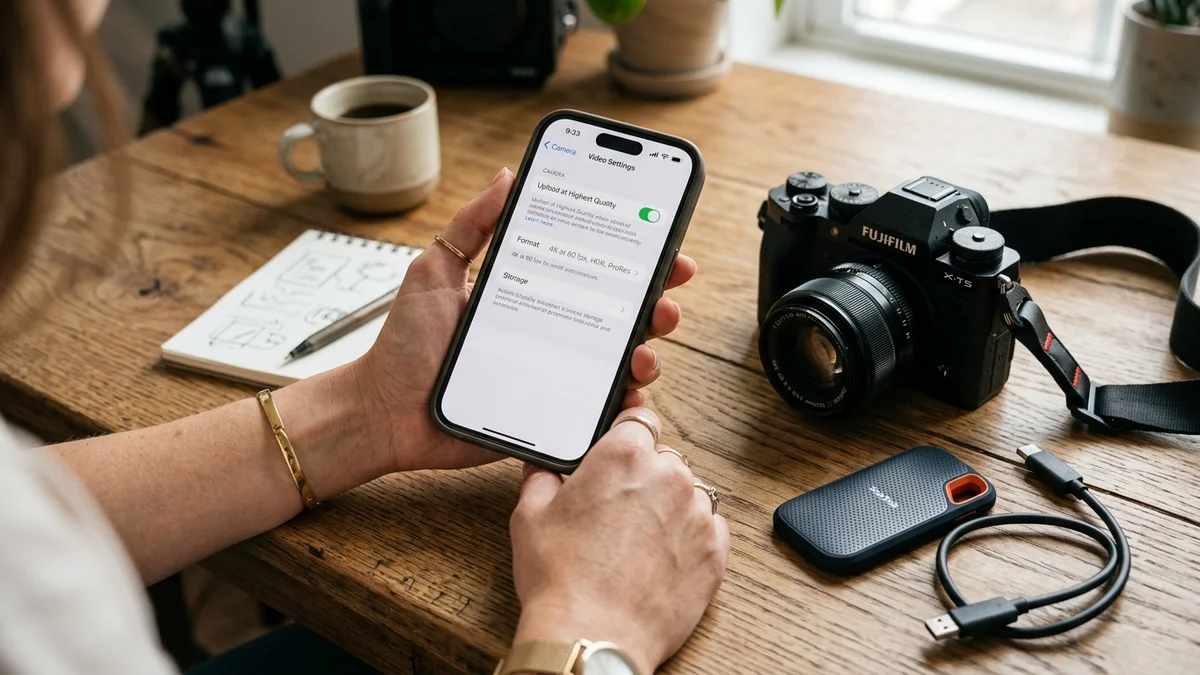
1. The Blurry Video Paradox: Why Pristine Footage Degrades
You shot your video on a high-end mirrorless camera or an iPhone Pro in breathtaking 4K ProRes. It looks razor-sharp on your device. Yet, thirty seconds after posting to Instagram, the playback is pixelated, blurry, and looks like it was filmed through a fogged lens.
This phenomenon occurs because Instagram handles over a billion video impressions daily. To prevent global server infrastructure collapse and reduce mobile data consumption, Meta's automated ingestion engine aggressively re-encodes any file that exceeds its internal bandwidth thresholds.
2. Step 1: Enable "Upload at Highest Quality" in App Settings
By default, the Instagram mobile app is configured to conserve mobile data. When your connection dips, the app quietly compresses your upload by up to 60% before it even leaves your phone.
- Open your Instagram profile and tap the hamburger menu (three horizontal lines) in the upper right.
- Navigate to Settings and Privacy > Data Usage and Media Quality.
- Ensure the toggle for "Upload at highest quality" is switched ON.
- Ensure "Data Saver" is switched OFF.
3. Step 2: The Bitrate Sweet Spot (15–20 Mbps Max)
A common misconception among creators is that higher bitrate always yields better quality. On Instagram, uploading a 70 Mbps file forces the platform’s heavy lossy transcoder to crush the file down.
Instead, export your finished video with a target bitrate of 16 Mbps VBR (Variable Bit Rate). When Instagram's server detects a clean 1080p MP4 file at 16 Mbps, it bypasses aggressive downscaling, leaving your video in its original crisp state.
4. Step 3: Camera Capture Settings (iPhone & Android Optimization)
Configure your native smartphone camera settings as follows:
- Resolution: 4K at 30 fps (film in 4K to allow cropping in post, but always export to 1080p!).
- Format: High Efficiency (HEVC) or Most Compatible (H.264).
- Lock White Balance: Prevent color shifting when transitioning between lighting conditions.
- Clean Your Lens: 50% of "blurry video" complaints are simply skin oil and fingerprints smeared across the smartphone camera glass!
5. Step 4: Solving Washed-Out HDR & Color Shifts
If your video looks overly bright, blown out, or washed out on Instagram, you are experiencing an HDR to SDR color space mismatch. Modern iPhones record in 10-bit Dolby Vision HDR by default. When uploaded to a platform rendering in standard Rec. 709 SDR, the highlights clip drastically.
The Fix: In your iPhone settings, navigate to Camera > Record Video and toggle off HDR Video, or ensure your video editor converts the color space to Rec. 709 prior to final render.
6. Step 5: Network Throttling & Cellular Upload Traps
Never publish high-stakes Reels while on unstable public Wi-Fi or weak cellular connections. If Instagram detects packet loss or latency during upload, it automatically downgrades the asset stream to standard definition to ensure the post completes. Always upload over a fast, stable broadband Wi-Fi connection.
7. 5-Minute Pre-Upload Quality Checklist
- [ ] "Upload at highest quality" enabled in Instagram settings.
- [ ] Canvas framed to 1080 × 1920 (9:16 vertical).
- [ ] Exported at H.264, 1080p, 30 fps, 16 Mbps bitrate.
- [ ] Color space confirmed as Rec. 709 SDR.
- [ ] Connected to high-speed stable Wi-Fi.